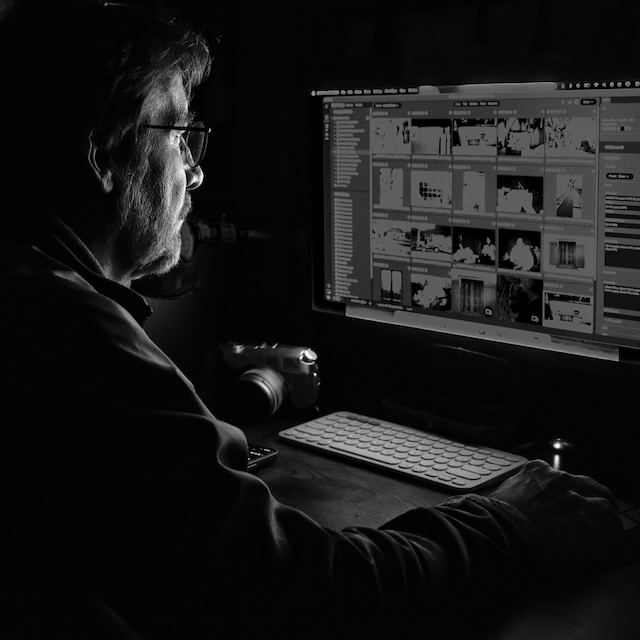
For a decade, Adobe Lightroom and Photoshop were simply part of my photographic life. I didn’t choose them so much as end up with them. When Apple ended Aperture in 2014, I had no real alternative. Adobe was really the only option and they made the transition easy, even offering a smooth import path from Aperture. I followed the crowd and settled into the Adobe ecosystem.
Over time, though, that ecosystem began to feel less like a choice and more like something I was stuck with.
The Slow Squeeze
As the years went by, Adobe’s subscription costs crept upward. New AI features kept appearing, but they weren’t things I personally needed or asked for. I’m a hobbyist. My needs are modest. What I wanted was stability, affordability, and tools that supported the way I work.
Instead, I found myself paying more each year for features I didn’t use.
Support also became increasingly frustrating for me. Whenever I needed help, I ended up in long queues, bouncing between automated systems and support tiers. The people I eventually reached were polite, but often unable to resolve the issue without escalating it further. Days or weeks would pass before anything was sorted out. It left me feeling like I was on my own.
When the Catalogue Crashed
At some point, I also learned just how fragile the Lightroom catalogue can be. It’s essentially a database, and like any database, it can become corrupted. In my case, it did. My entire library suddenly became inaccessible.
I reached out to Adobe support, but in my experience, the process didn’t lead to a solution. If I hadn’t kept good backups, I would have lost decades of work. That incident shook my confidence in relying on Lightroom as the central hub for my photographic history.
For me, that was the moment I realized I needed to look for a way out.
Looking for the Exit
When I started exploring alternatives, Capture One was the name that came up most often. But the last thing I wanted was to move from one expensive system to an even more expensive one. I wasn’t looking for a professional studio solution with a price tag to match. I just wanted something practical and affordable. That ruled Capture One out for me.
Then I tried ON1 Photo RAW.
Discovering ON1
ON1 immediately stood out because I could buy it outright. A subscription is available if you want cloud storage or extra features, but the core application is a one‑time purchase at a reasonable price. I downloaded the demo and quickly realized that most of what I did in Lightroom translated directly into ON1.
The big question, of course, was my Lightroom library—forty years of photography, edits, metadata, and organization. Losing that wasn’t an option.
To my relief, ON1 had already thought about this.
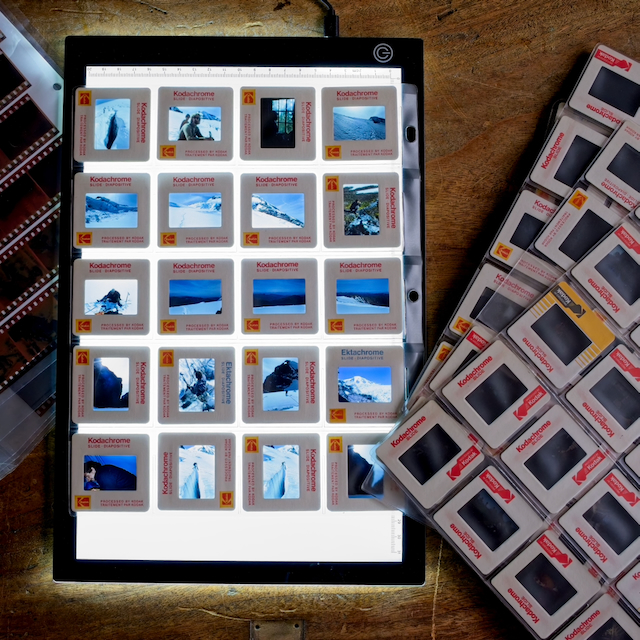
How the Migration Worked for Me
Adobe and ON1 interpret RAW files differently, so ON1 takes a clever approach. It links to Lightroom and instructs it to export each RAW file as a JPEG with all edits baked in. Then ON1 imports both the RAW and the JPEG. If the RAW looks different in ON1, the JPEG serves as a faithful reference to the original edit.
It took a while, but it worked.
Two years later, I haven’t run into a single situation where the migration caused a problem for me.
What I Gained
One Application Instead of Two
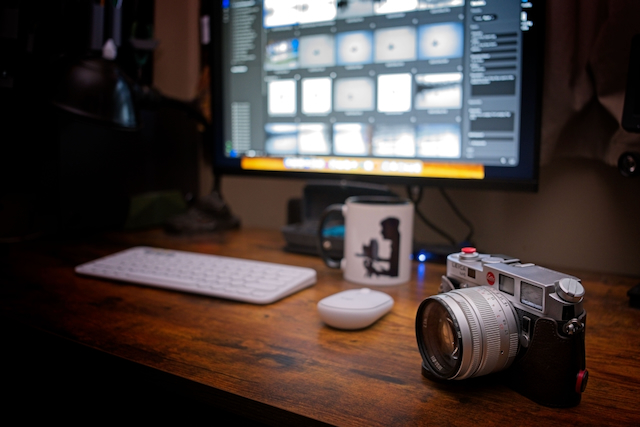
Everything I used to do across Lightroom and Photoshop now happens inside a single application. No more switching back and forth.
A Simpler Workflow
I found ON1 easier to use. Anything I used to do in Adobe, I can now do in ON1 with less effort.
A Sense of Control Again
No subscriptions. No creeping price increases. No feeling of being locked into a system that wasn’t working for me anymore.
A More Stable Environment
With Lightroom, manipulating the file structure outside the application could cause serious problems. The catalogue always felt like a house of cards — one wrong move and everything could collapse. Not so with ON1. If I want to move files or entire folders outside of ON1, even to a new drive, I can. ON1 doesn’t even blink.
Any Problems?
When I migrated, I enabled ON1’s Keyword AI, which automatically assigns keywords based on what it sees in your photos. In my case, it generated hundreds of irrelevant keywords—man, woman, wheel, foot, arm—cluttering my library. I eventually turned it off and began the long process of deleting the junk keywords. If I could do it again, I’d leave that feature disabled from the start.

I initially found that ON1 is very processor‑ and memory‑intensive in catalogue mode, as it’s running indexing and other background tasks. If you run it in browse mode it turns off most of that backend processing which is much less demanding. In fact I don’t really see a difference aside from the fact that Keyword AI requires catalogue mode but as I said above, I’ve turned that off.
Not Sponsored — Just My Experience
Before I wrap up, I want to be clear that this post isn’t sponsored by anyone. I’m not affiliated with ON1 or any other company. I’m simply sharing my own experience after feeling stuck in a system that no longer worked for me.
ON1 has been a great fit for my needs, but that doesn’t mean it’s the right choice for everyone. If you’re feeling boxed in by Lightroom, there are several alternatives worth exploring. Each has its own strengths, pricing models, and workflows.
Lightroom Alternatives to Explore
ON1 Photo RAW – My personal choice; one‑time purchase available. This ticked all the boxes for me, but be aware of its system requirements.
Capture One – Powerful, professional‑grade tool; excellent product, but even more expensive than Adobe and with no cloud functionality.
Affinity – Now completely free; a strong Photoshop‑style editor, though not a catalog system — you would need another app for that. It works nicely with Photomator, which does have a catalogue.
Pixelmator / Photomator – Now owned by Apple; modern, fast, inexpensive, and tightly integrated with macOS and iOS. Nice catalogue and editing, but oddly no keywording functionality.
DxO PhotoLab – Excellent RAW processing and noise reduction.
Luminar Neo – AI‑driven editing with a simpler interface.
Darktable – Open‑source and free; more technical but very capable.
RawTherapee – Another free, open‑source RAW editor with deep controls.
If you’re feeling trapped, it’s worth trying a few demos. The right tool is the one that supports your workflow, your budget, and your creative goals.
Thanks for this, Jim. I have been contemplating switching for too long. I’m mostly afraid of losing files/edits. I have Luminar, but I only use it as a plug-in. I also grabbed Affinity, but haven’t looked into it much for photo editing. I’m so tired of the subscription models on EVERYthing.
ON1 was my alternative choice as well, but I find it’s sliding down the AI path with concerning alacrity. I shoot Nikon so I’ve been investigating Nikon studio since I’d heard the RA W conversion was better with a Nikon product. So far, so good, but I confess I haven’t used it for much more than file handling and transferring the selected NEF files to my ancient (and unlicensed) copy of Photoshop.